Developer Guide
Room Moves
Carry Out a Room Move
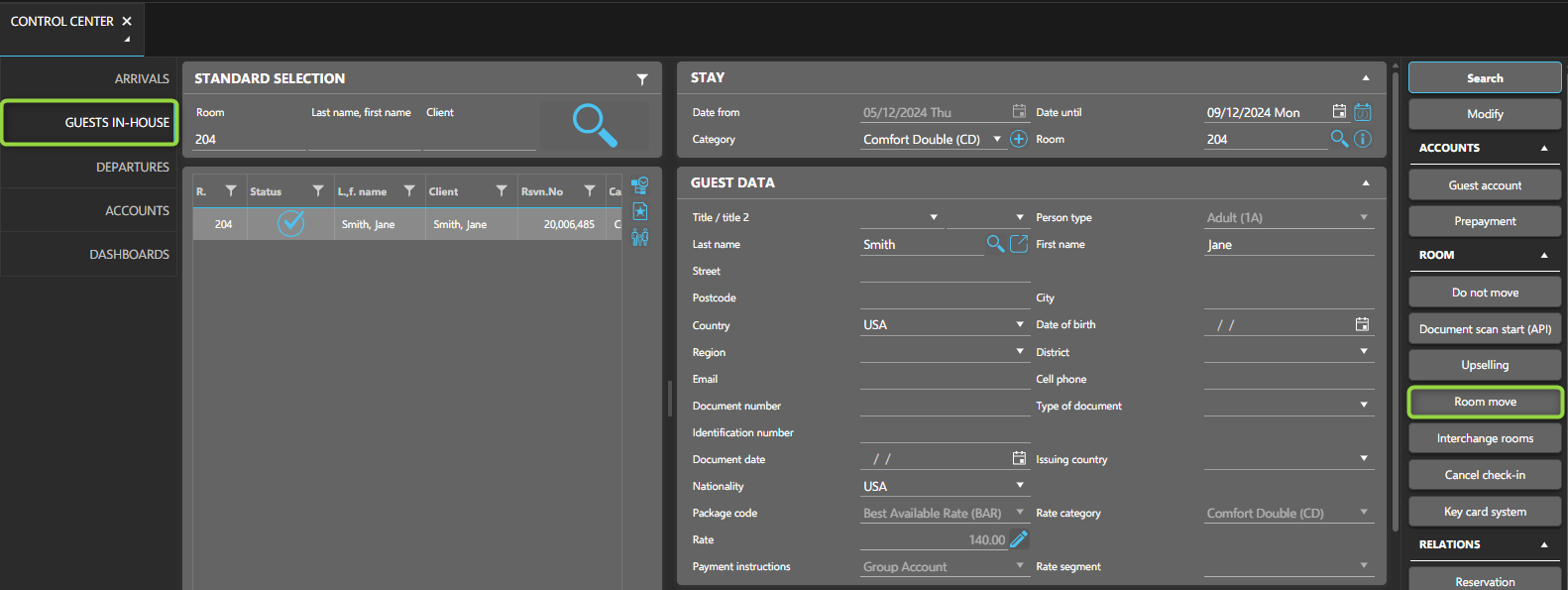
You can perform a room move in two ways:
- Directly from the Rooming List of the reservation.
- Through the Guests in House section in the Control Center.
Steps to Perform a Room Move:
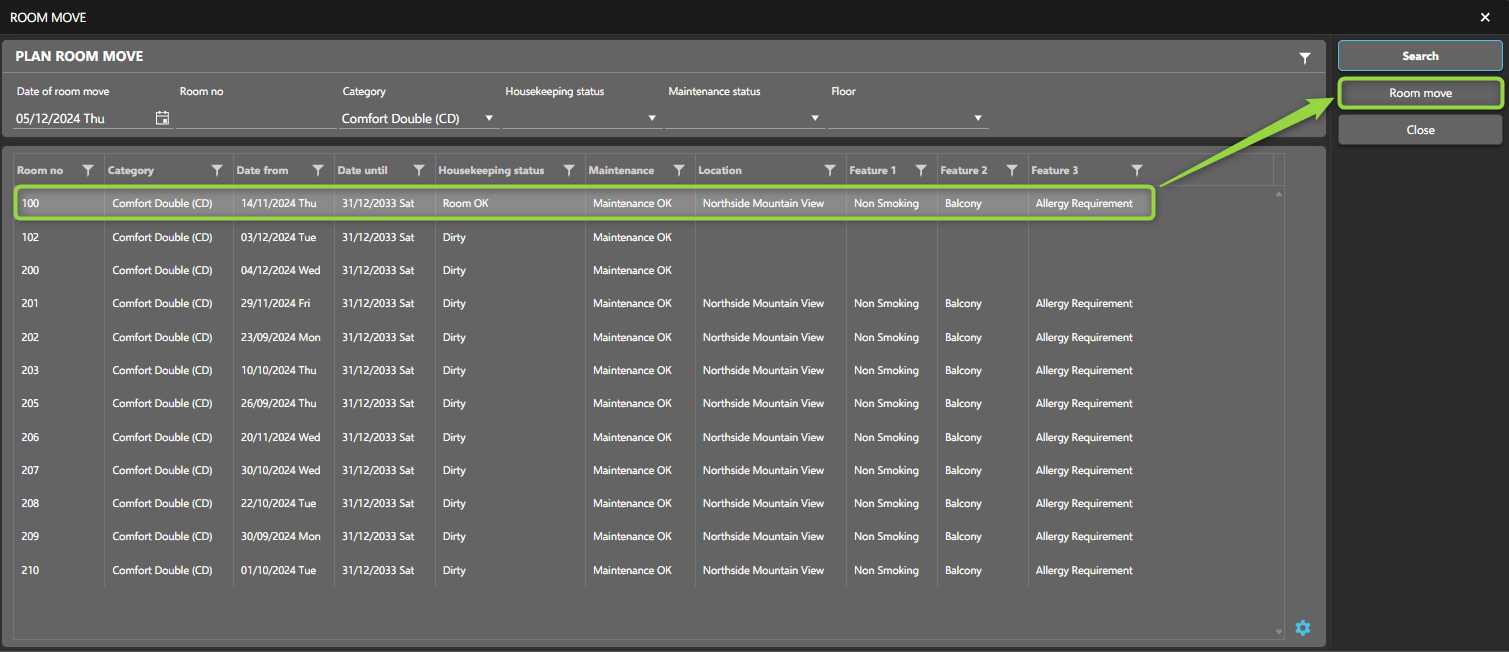
- Select the Room Move option to search for available rooms.
- Filter the available rooms by category, housekeeping status, or choose to search with no filters.
- After selecting the room, choose room move from the function pane.
Plan a Room Move in the Future
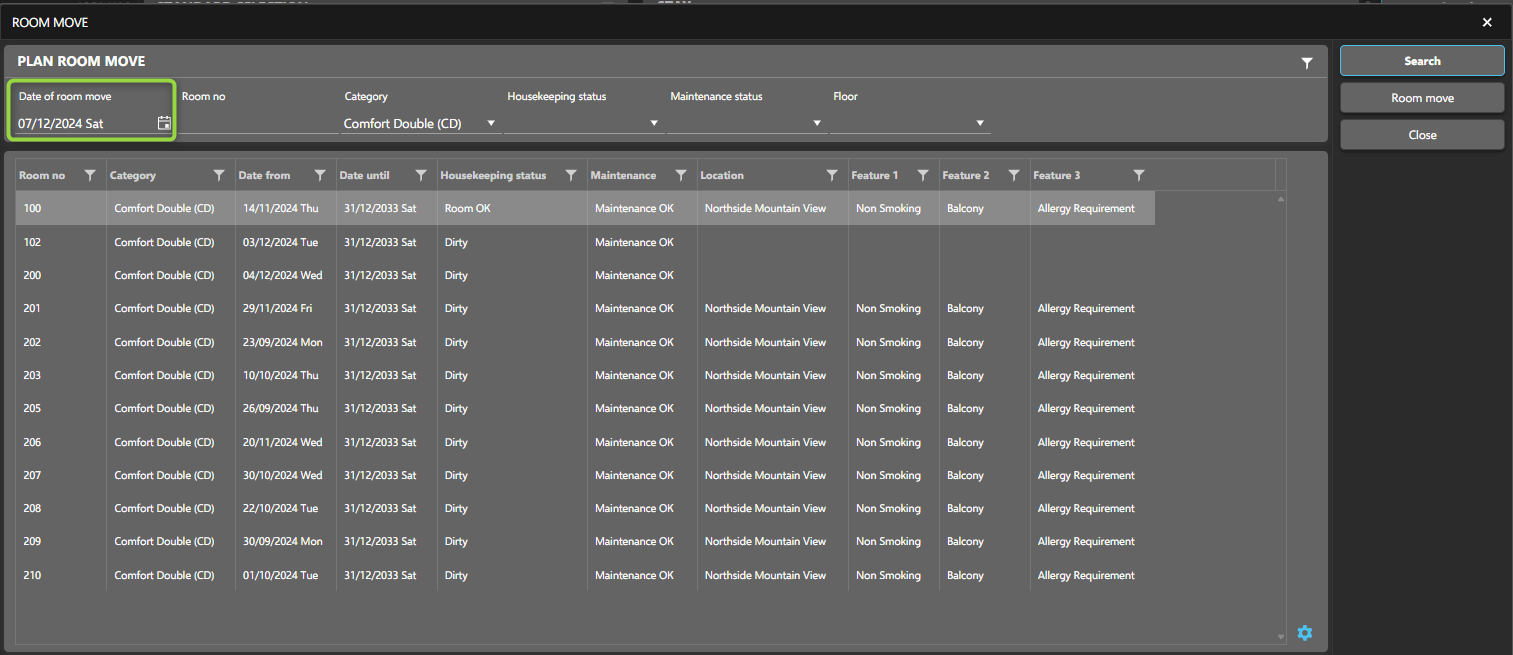
To schedule a room move for a future date:
- Follow the steps outlined in the Carry Out Room Move section.
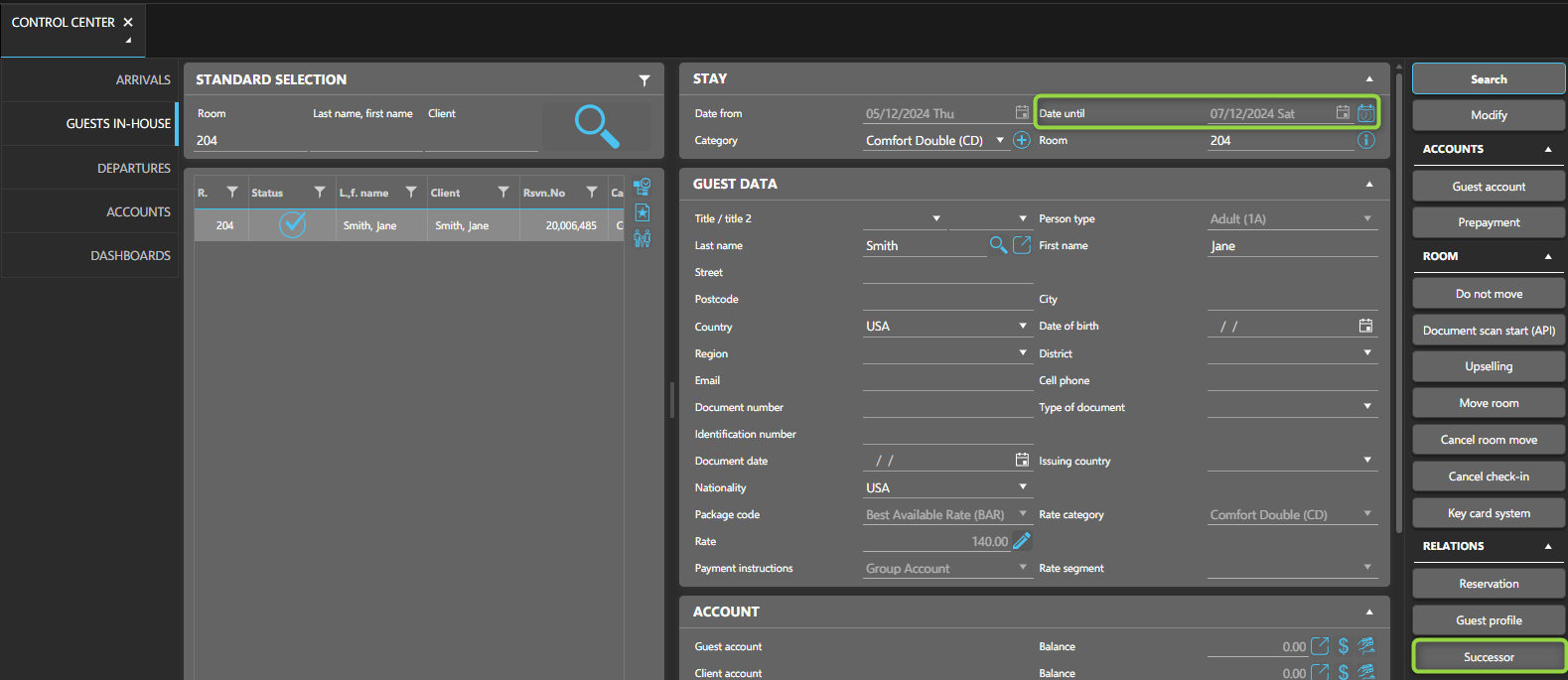
- Set the move date to a future day. This will reserve the room for the planned move and prevent it from being used in the meantime.
The current reservation's checkout date will be updated, and a new successor reservation will be created. The successor reservation will share the same reservation number but with a different RESERVATION-OBJID.
Executing the Planned Room Move
The room move will be executed on the scheduled day. To proceed:
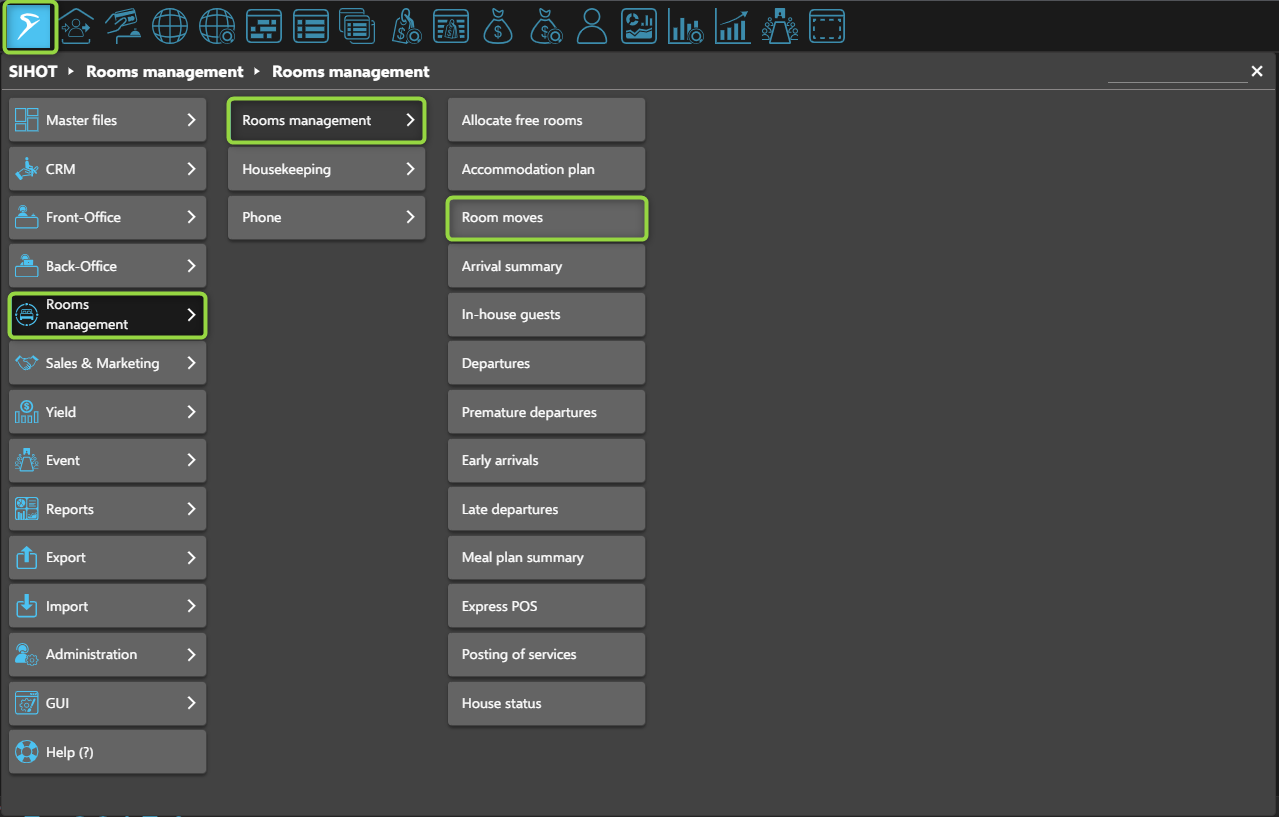
- Open the Rooms Management Menu.
- Navigate to the Room Moves Layout.
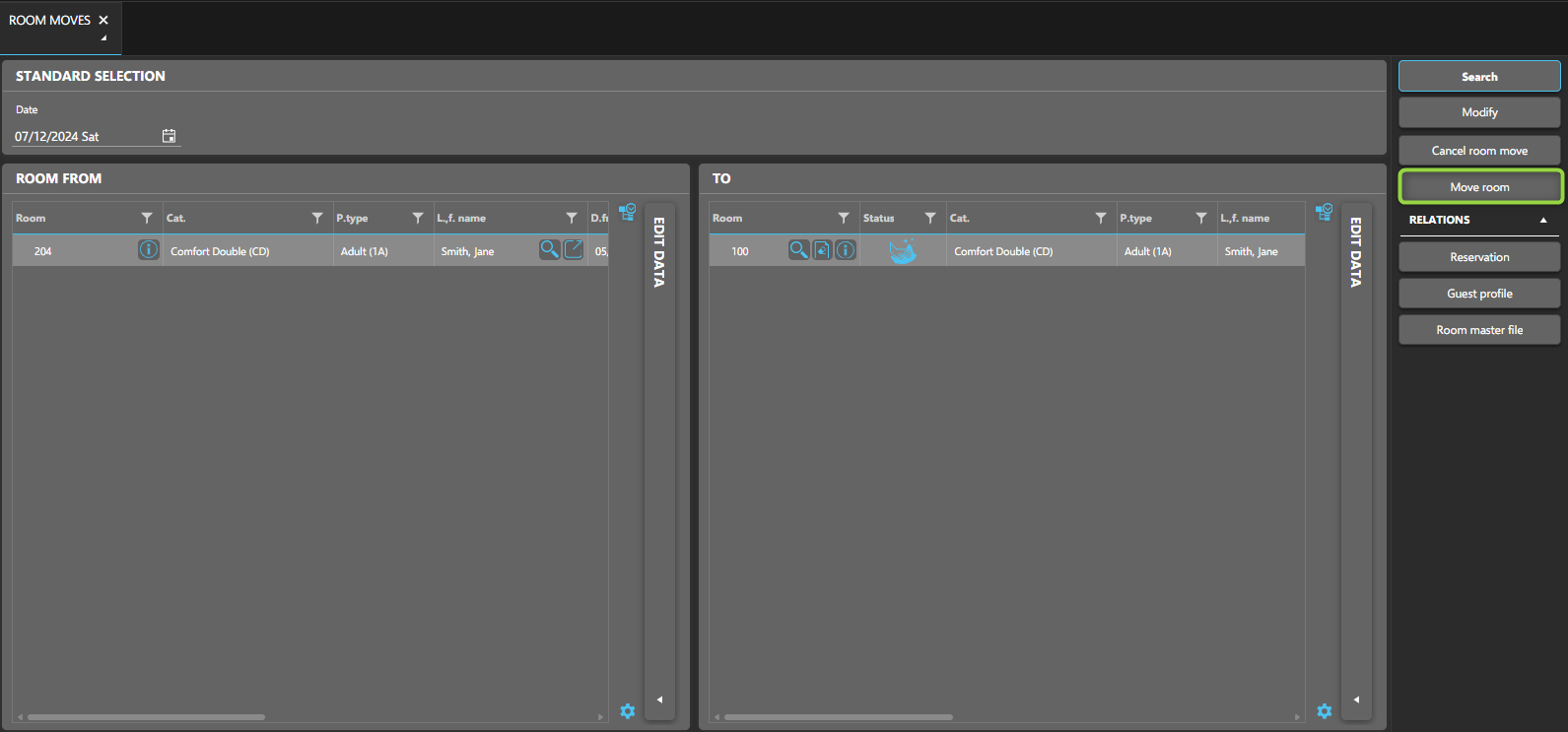
- Select the room move to execute and click Move Room to confirm.
NOTE
When the room move is performed: The old room (the "predecessor") is automatically checked out. The guest is checked into the new room (the "successor") with a new reservation sub-number.
Cancel a Planned Room Move
If you need to cancel a scheduled room move:
- Go to the Room Moves Layout and enter the planned move date.
- Select the room and click Cancel Room Move in the function pane to proceed.
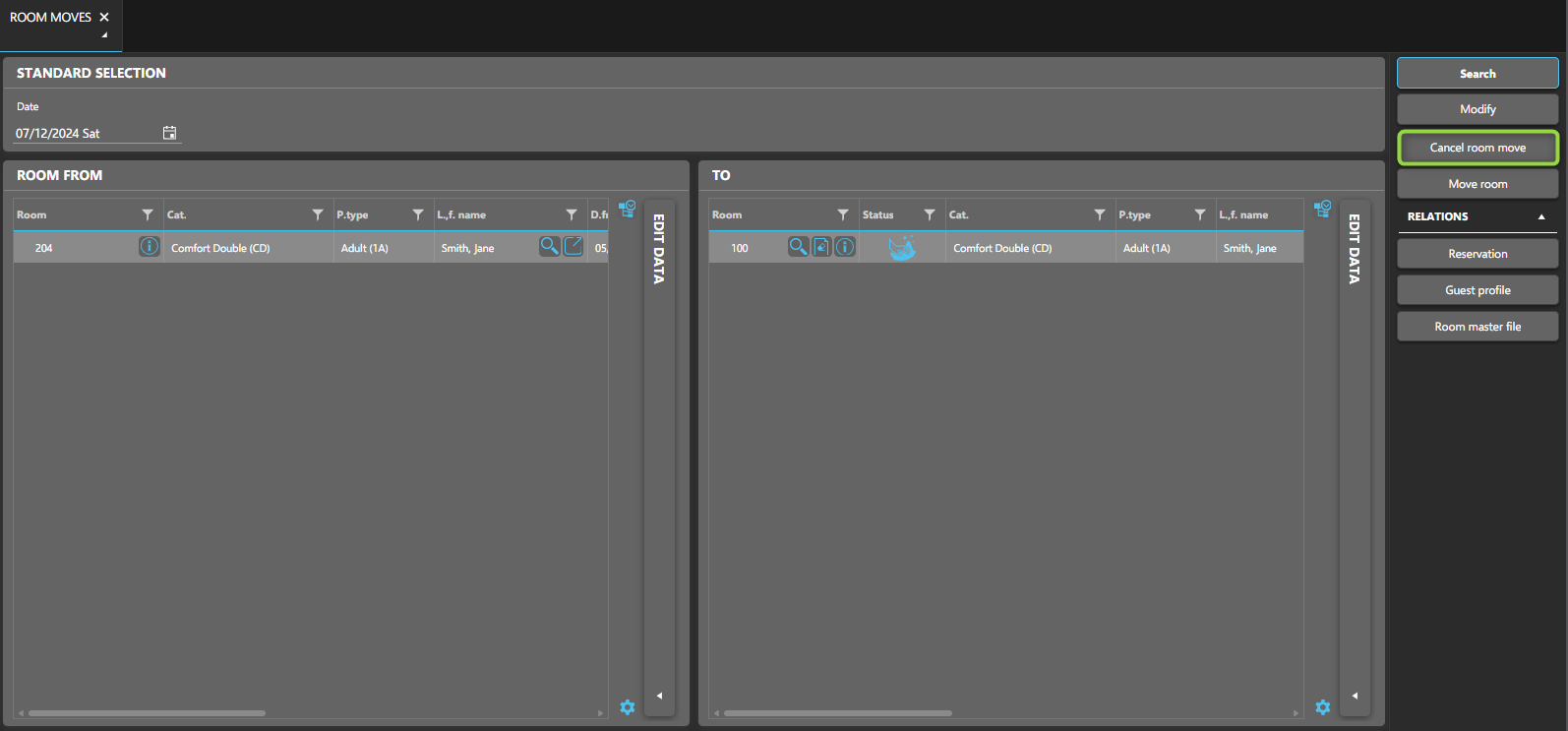
This will revert the reservation to its original details, removing the second part of the reservation from the database.