Working with Reservations in SIHOT
Types of Reservations
SIHOT supports three types of reservations:
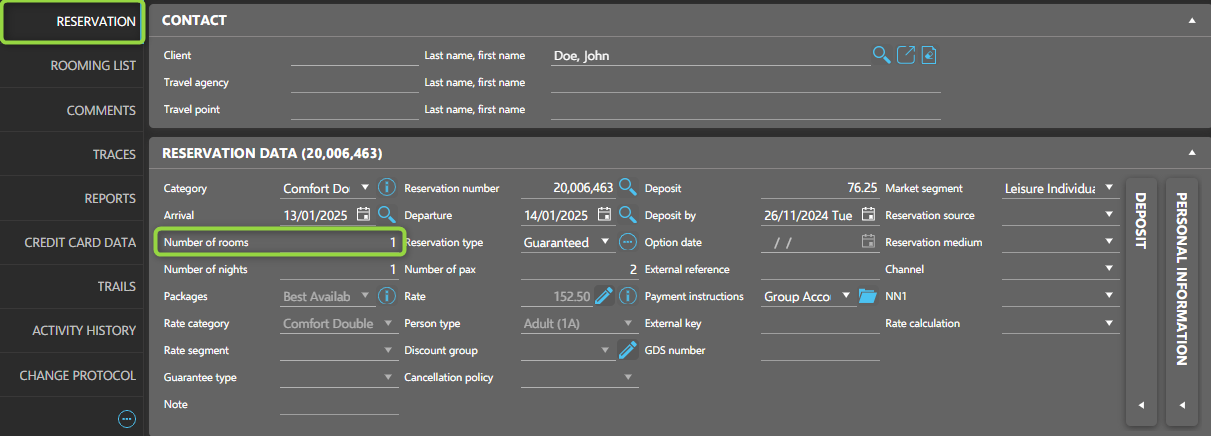
1. Simple Reservation
A simple reservation includes only one room.
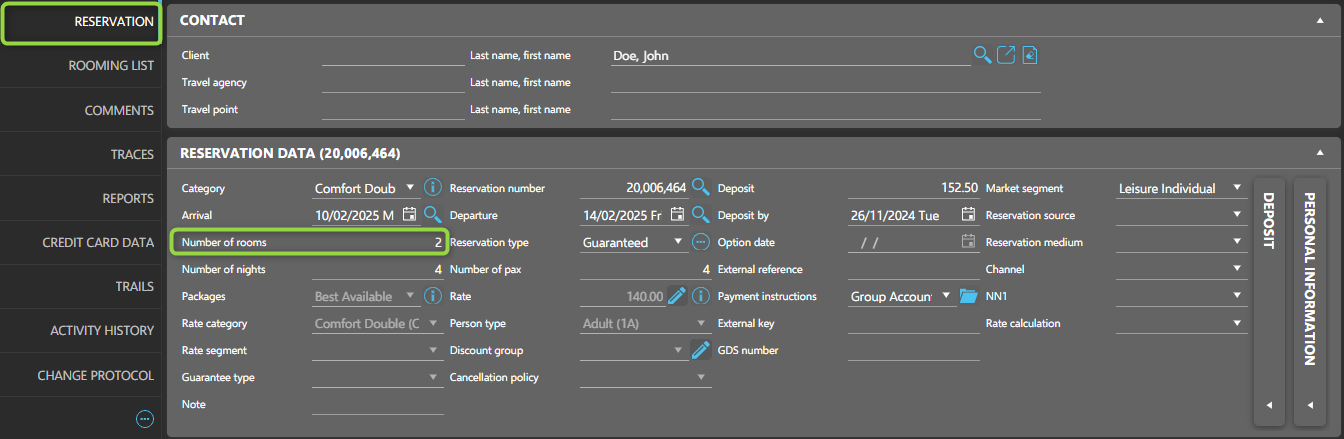
2. Multi-Room Reservation
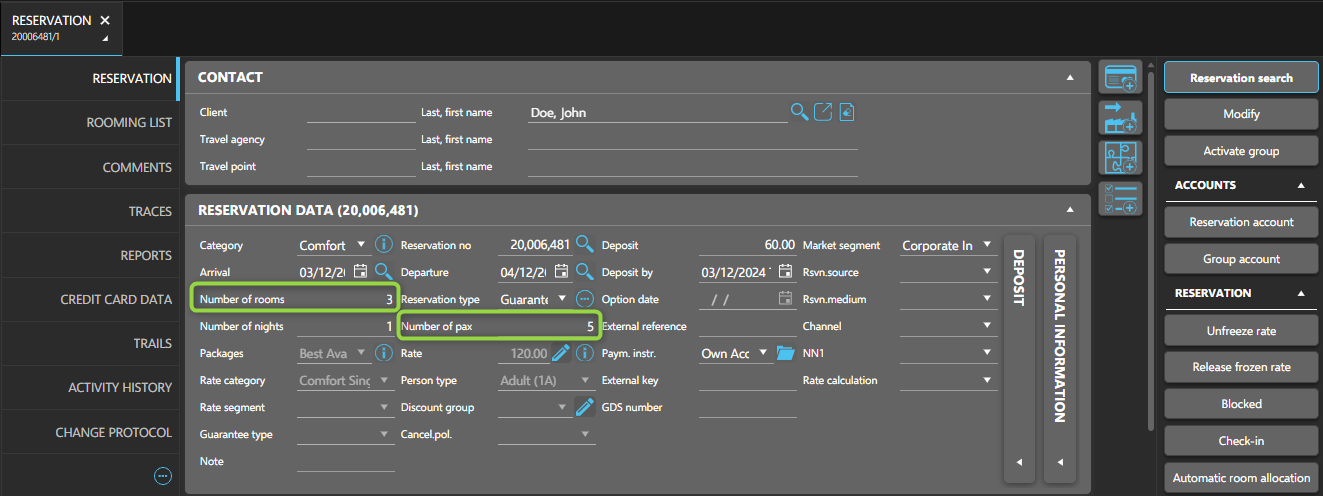
A multi-room reservation includes two or more rooms under one booking.
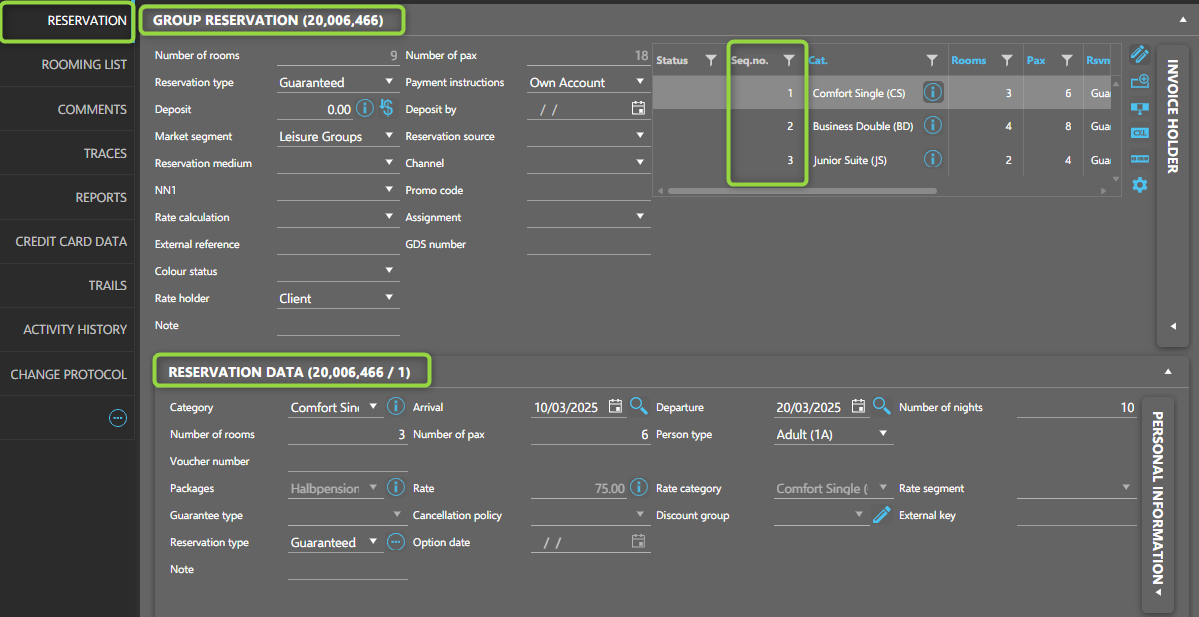
3. Group Reservation
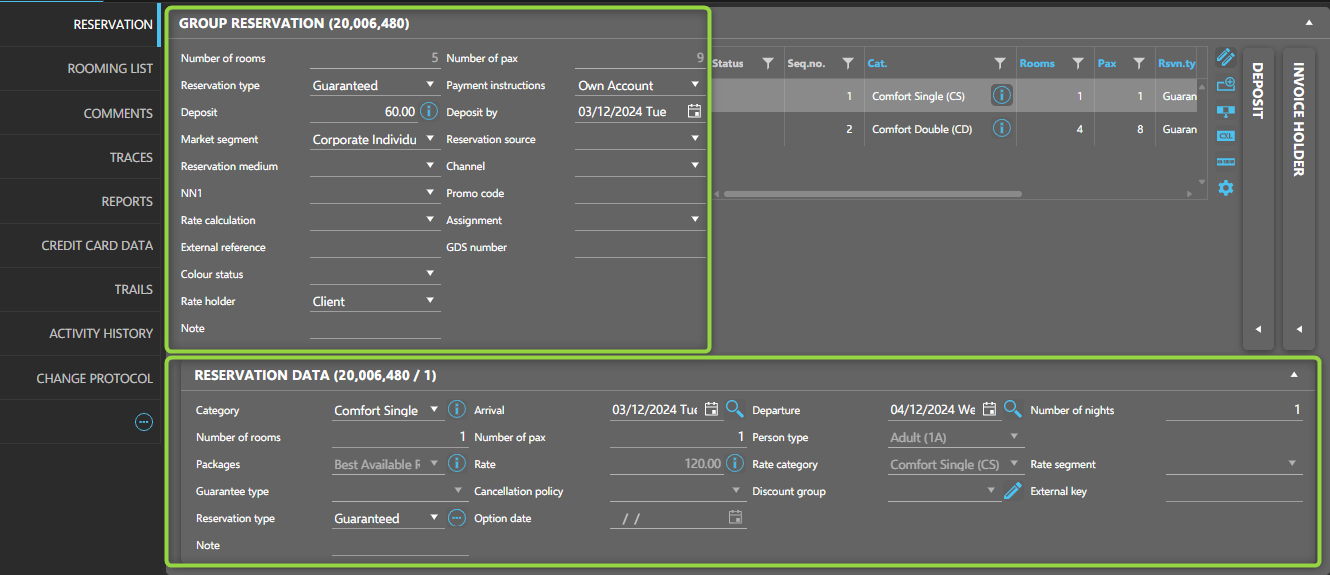
A group reservation consists of multiple elements grouped by room types and/or stay dates. Each element has a unique sub-number.
NOTE
In
all reservation types, the
rooming list may
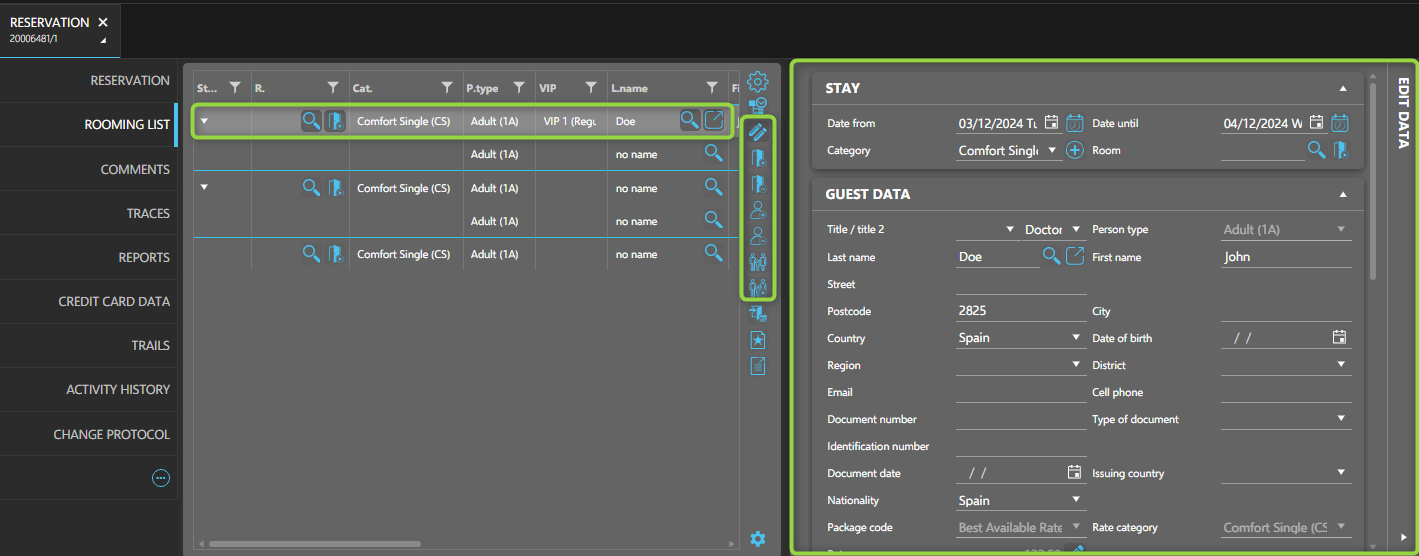
override information from the reservation data, such as:
- Room categories
- Packages
- Dates of stay
Below is an example showing the differences between reservation data and its rooming list:
Creating a Simple Reservation
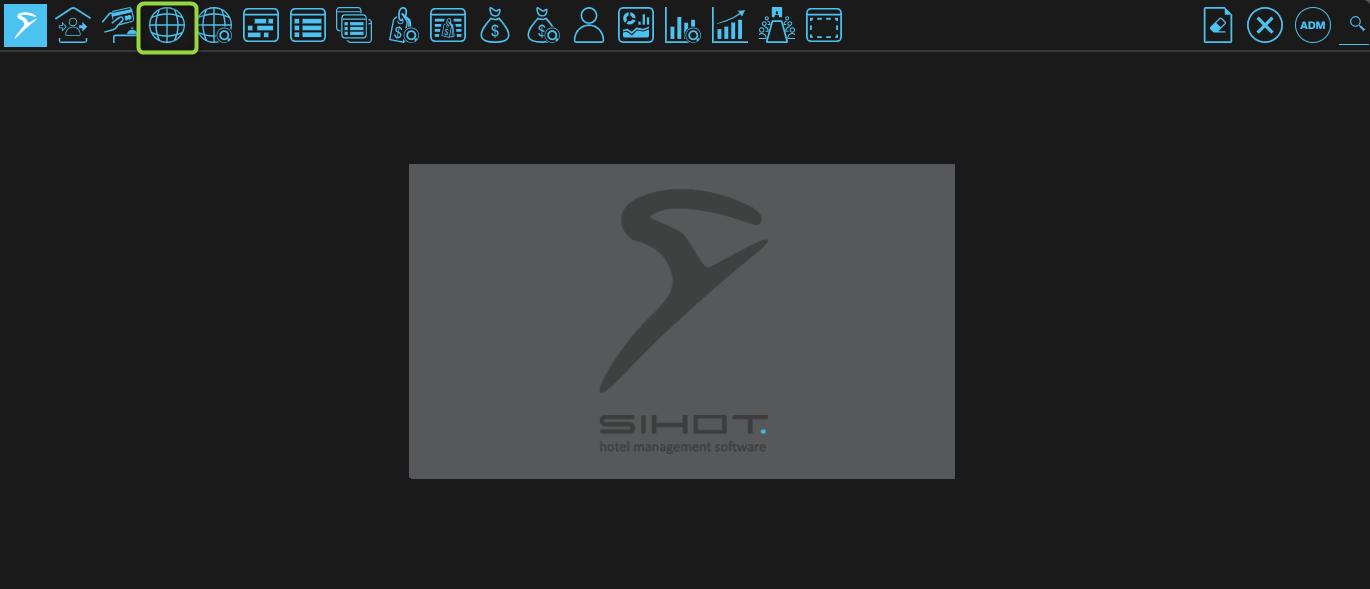
- Open the Reservation shortcut from the toolbar:
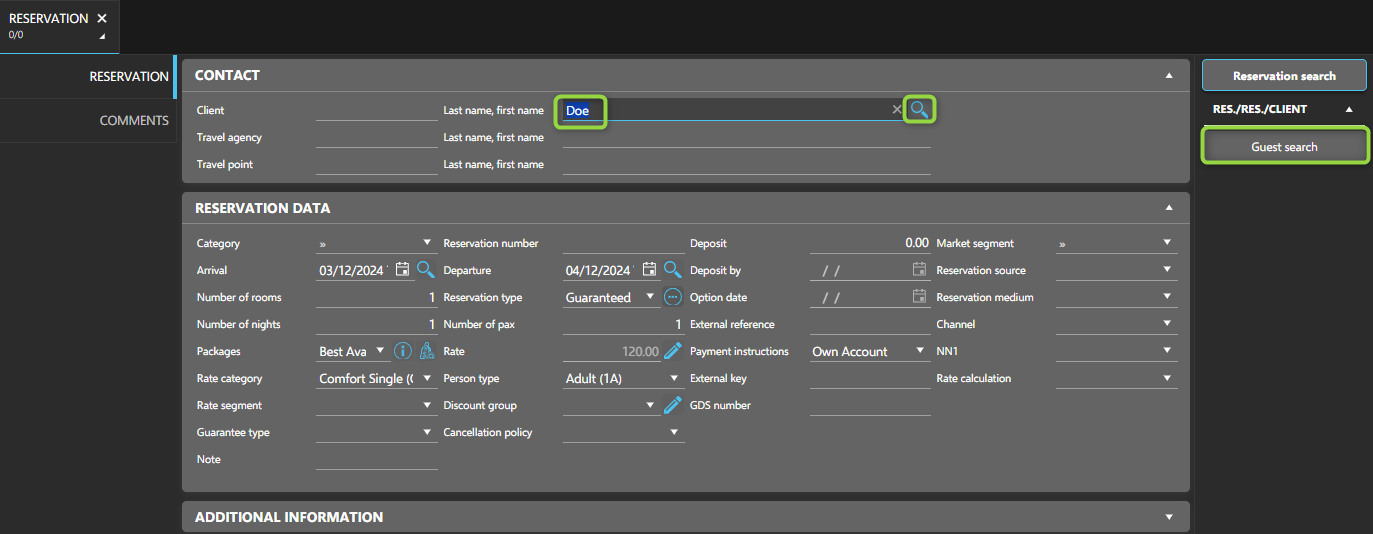
- Assign a guest profile:
- Enter at least 3 characters to activate the Search.
- Or click Guest search from the function pane.
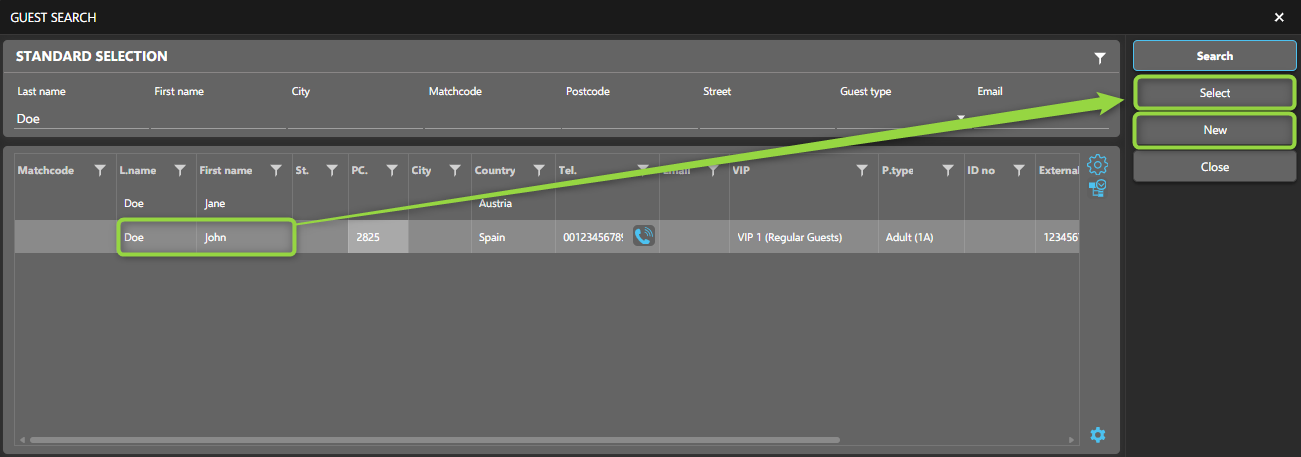
- Select the guest profile or create a new one:
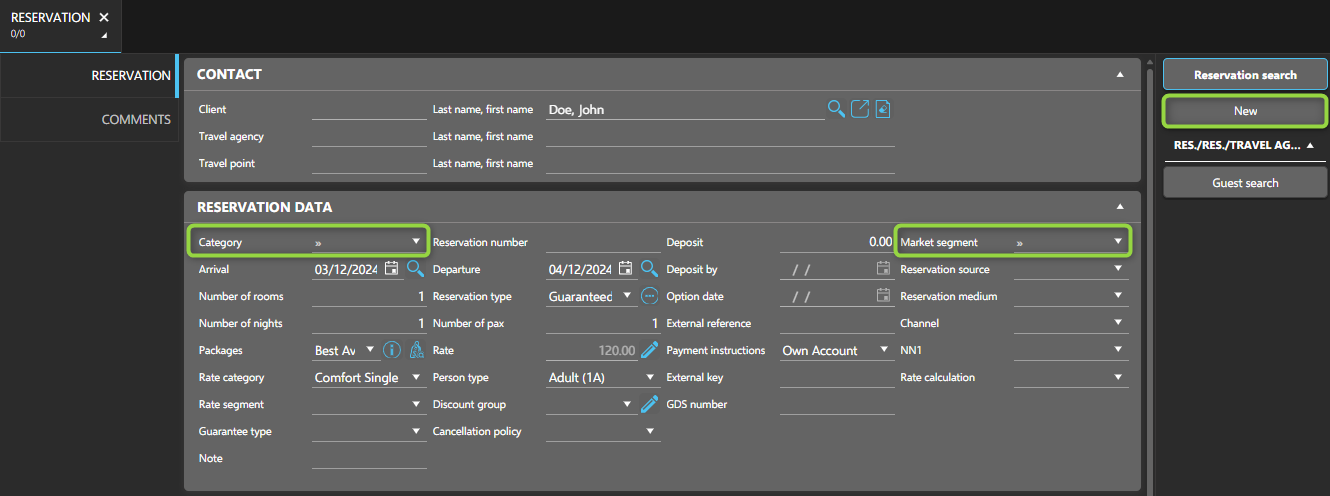
- Fill in the mandatory fields (marked with two arrows).
- Once completed, click New in the function pane to save.
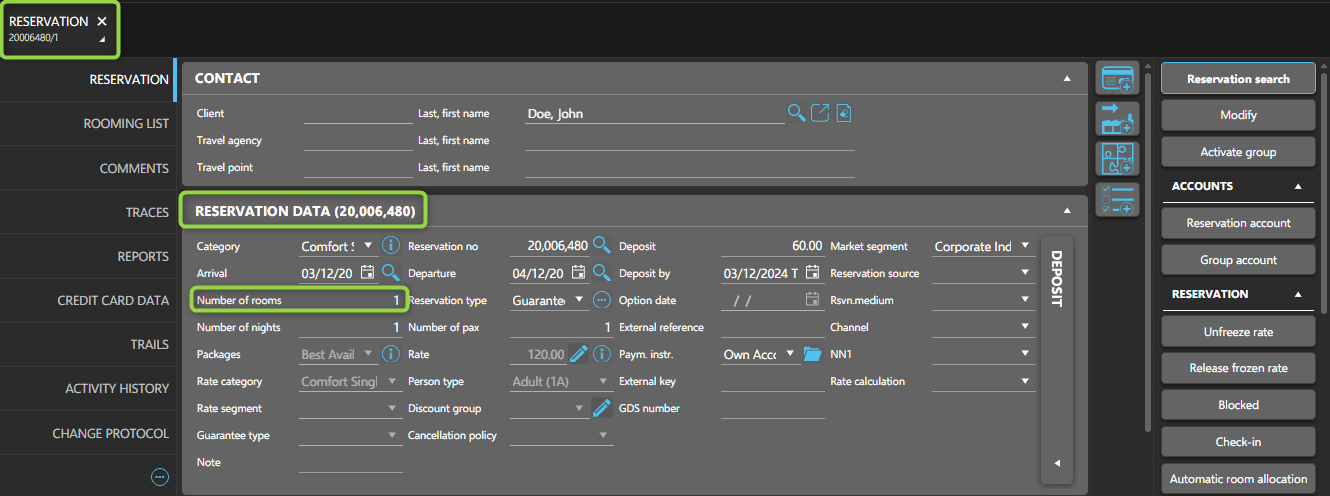
- After saving, the reservation number appears in the Reservation Data panel, along with several new tabs.
Creating a Multi-Room Reservation
Follow the same steps as for a simple reservation, but:
- Set the number of rooms to 2 or more.
- Enter key details (e.g., stay dates, room category) in the main reservation data.
Edit the rooming list
- Double-click to modify any field configured in the columns or
- Select the room and click Edit data from the expander.
Creating a Group Reservation
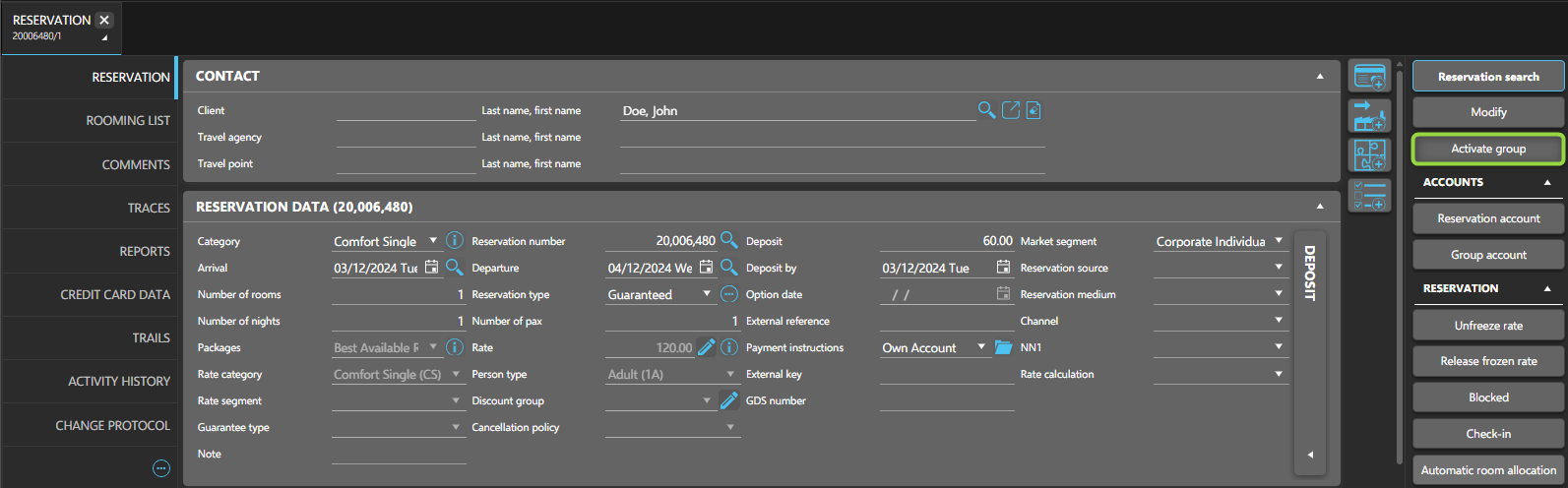
- Start with a simple reservation.
- After creation, click Activate group in the function pane.
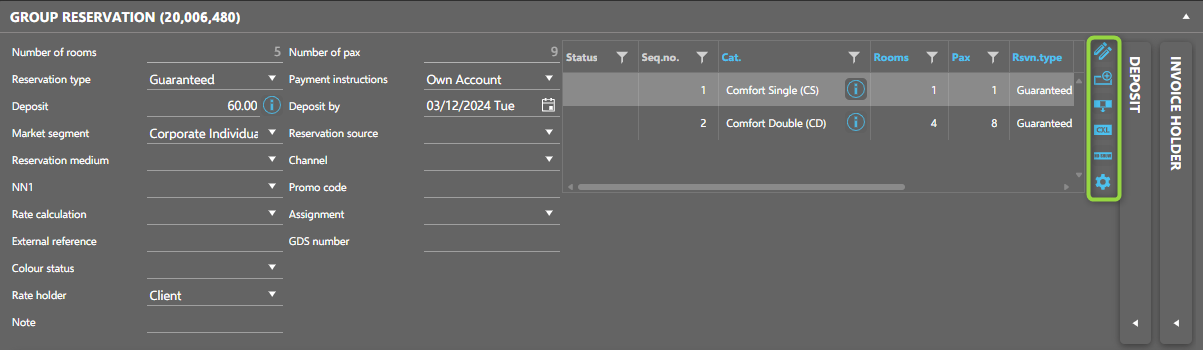
- The layout changes to support group handling:
- Group Reservation section: common data for all elements.
- Reservation Data to edit individually each field.
- You can:
- Add, remove, cancel, or mark elements as no-show.
- After adding an element, click New to save.
Updating a Reservation
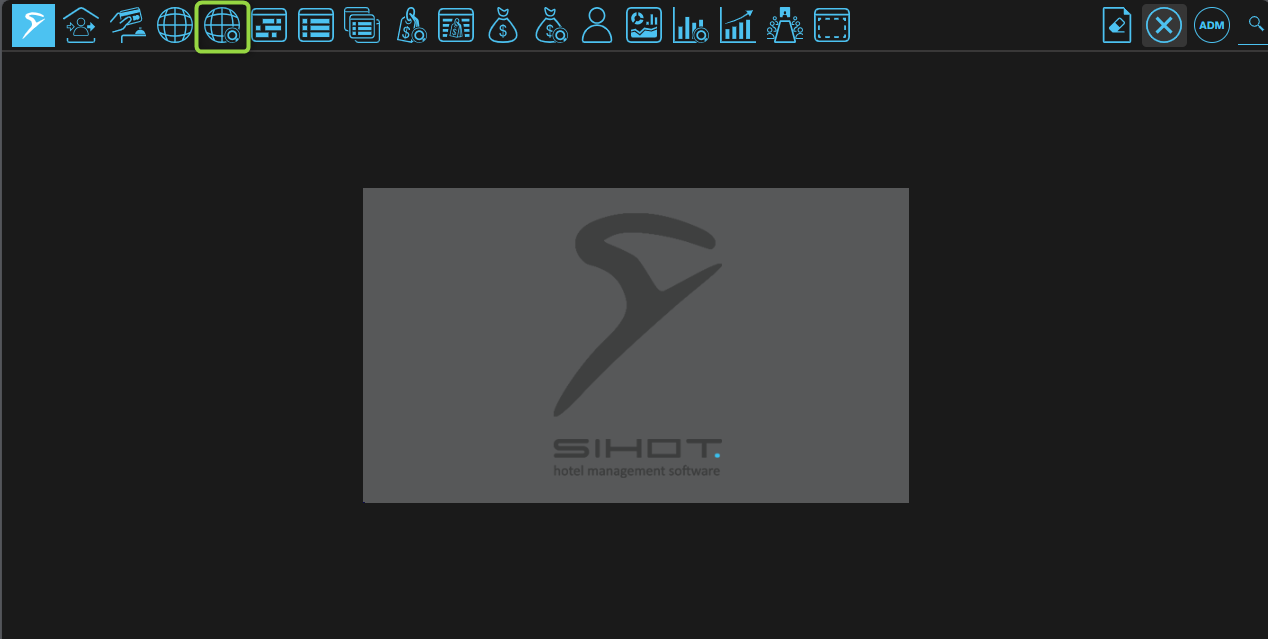
- Open the Reservation Search shortcut from the toolbar:
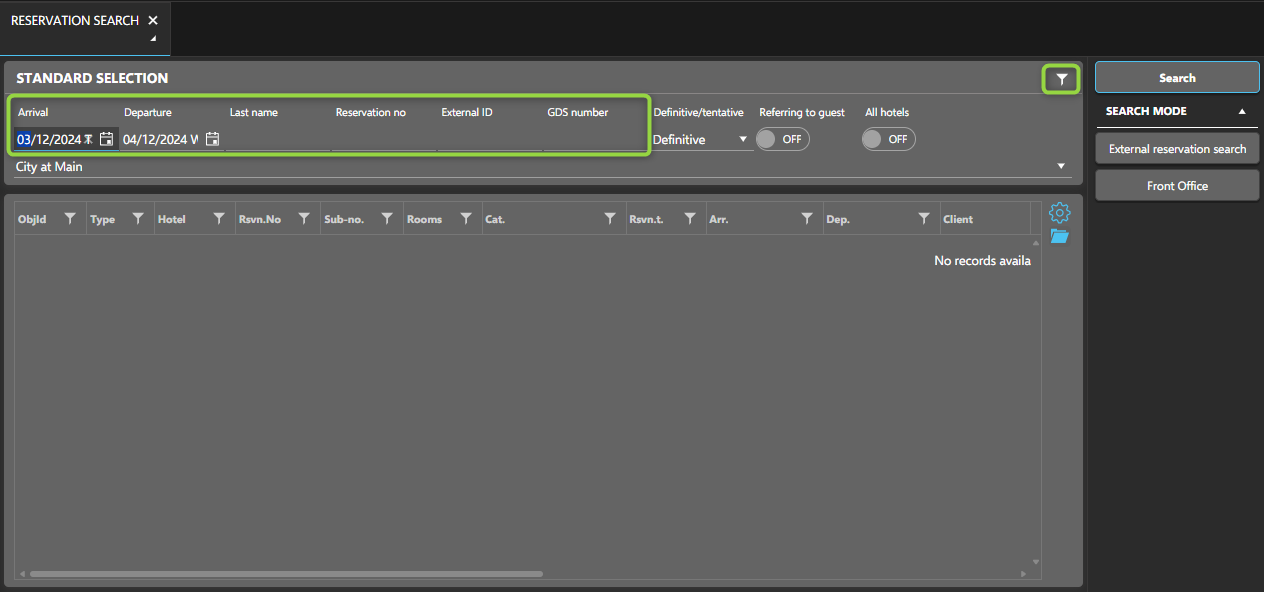
Use the following fields to locate the reservation:
- Last name
- Reservation number
- Arrival date
Use Extended Search (filter icon) for more criteria.
- Double-click the reservation to open it.
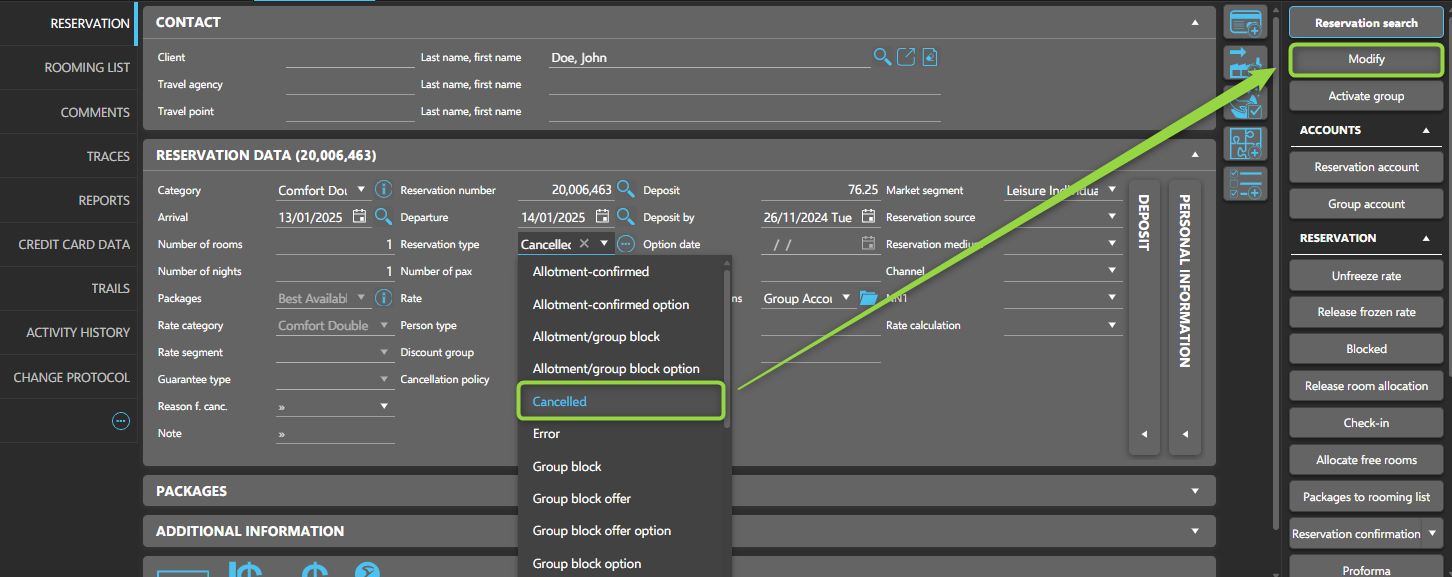
- Apply any updates and click Modify to save.
Update reservation status
- Open the Reservation type dropdown.
- Choose the new status (e.g., Cancelled, No-show).
- Click Modify to confirm.